How to take orders on WhatsApp from your website
A good WhatsApp order form gathers the useful details on your website, then hands the customer a clear message they can review and send in WhatsApp.
Ammar Mahmood, Founder, Zeliks
6 min read
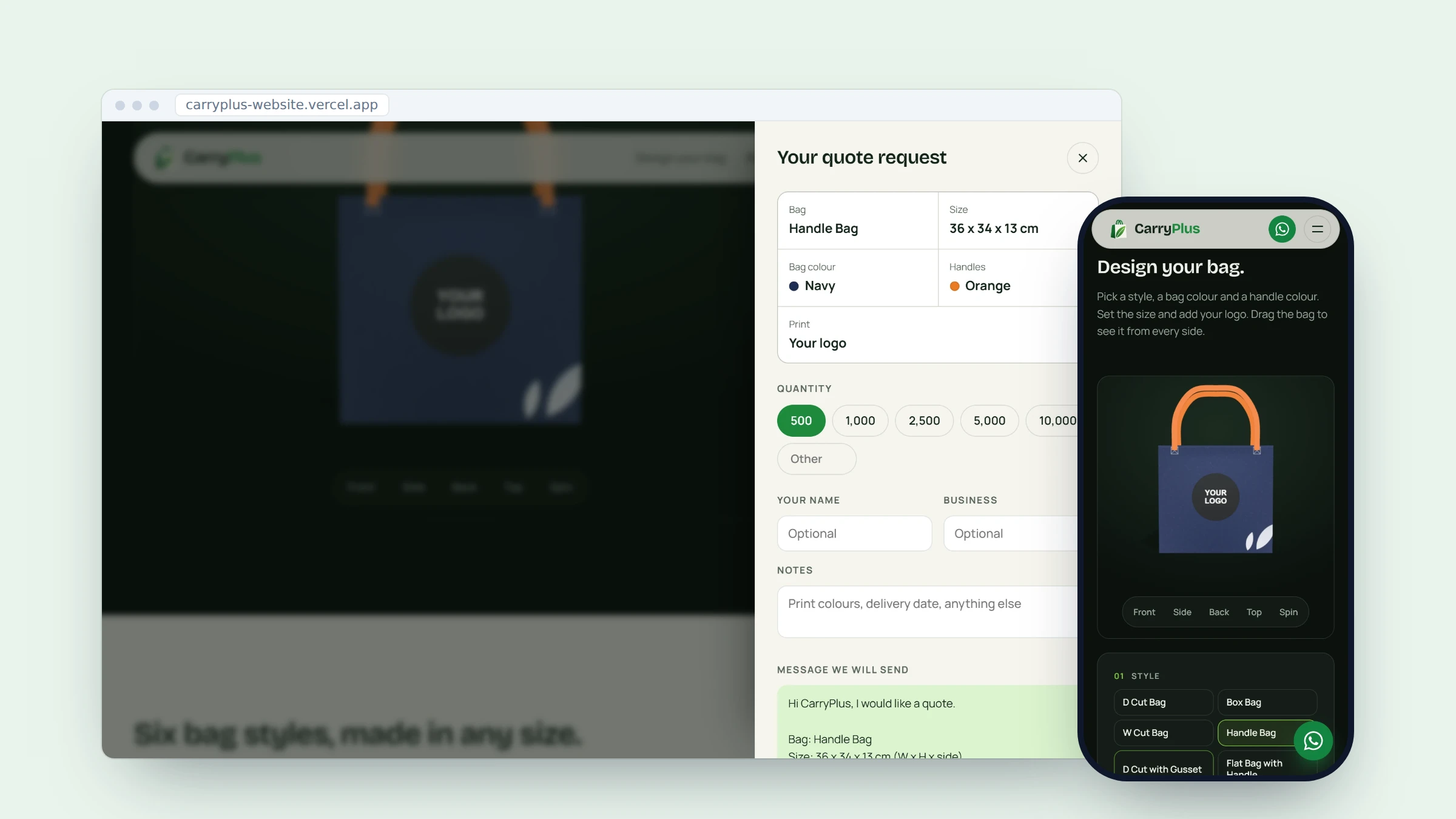
A WhatsApp order form for a website should make it easier for a customer to ask for the right thing, not move a vague request from one screen to another. The website collects the choices. WhatsApp opens with those details already written, ready for the customer to check and send.
This approach works well when the order needs a conversation, a quote or a custom check before payment. It is also honest about the handoff: opening a chat is not the same as placing an order. The customer remains in control of the final send button.
Start with the details your team actually needs
Begin with the questions that change what your team does next. For a repeat product, that may be quantity, size, colour, delivery preference and the customer name. For a custom job, it may be style, dimensions, artwork and a note about the deadline. Do not add fields only because a traditional contact form has them.
Keep the form short enough to finish on a phone. Use a stepper or clear choice buttons for numbers and options. Explain the one field that is required, and label the rest as optional. A customer who understands why you ask a question is more likely to give an answer your team can use.
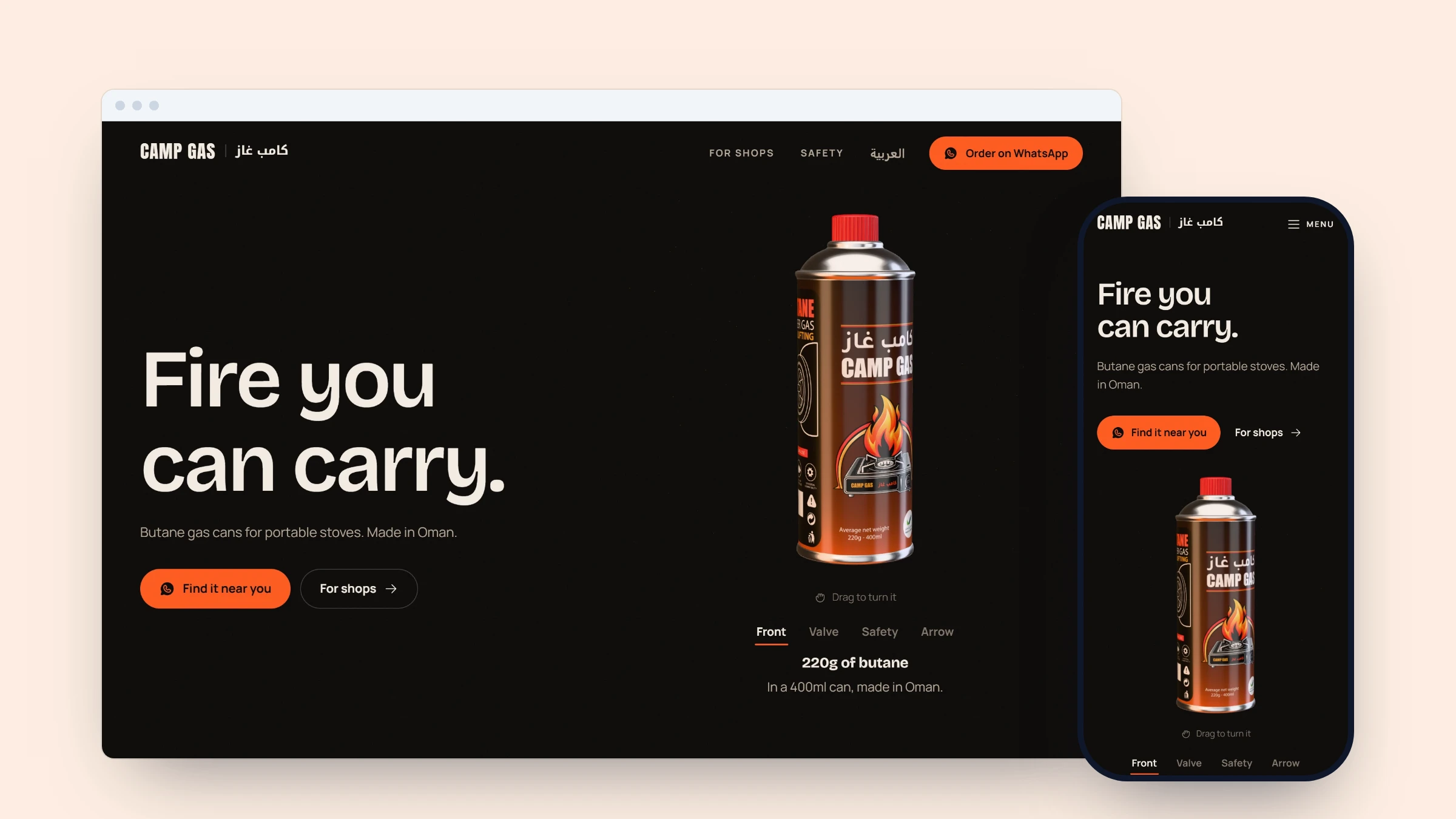
In the Camp Gas order builder, the customer chooses a carton count and the site calculates the related can total. It asks for a name before it will open the chat, then offers optional business, area and notes fields. That produces a request the team can read without asking the customer to repeat the first details.
Write the message before opening WhatsApp
The handoff message should read like a person wrote it for the recipient. Put the order summary first. Then add the contact details and notes. Use separate lines for the information staff will scan, such as item, quantity, size and delivery request. Avoid sending a block of raw form labels and values.
Camp Gas builds that message after the form passes its name check. Its code encodes the completed text into a wa.me address, opens it in a new tab and leaves the order unsent. That is a useful pattern because the website has done the counting while the customer still sees exactly what they are about to send.
The official WhatsApp click to chat guidance is the reference for this kind of link. Test the finished address on a phone and desktop browser. Check the number, message line breaks, special characters and the result when WhatsApp is not installed.
Order request

Name: Samira Khan
Business: Cedar Corner Shop
Item: Four cartons of butane cans
Area: Riverside district
Notes: Please confirm the delivery day.
Make the customer review the draft
Do not describe a click to chat link as an automatic order. It only opens WhatsApp with a draft. The customer can edit it, close it or press Send. Tell them this beside the form button so there is no surprise after the tap.
That review step has value. It lets someone catch a wrong quantity, add a useful note or decide they need an answer before they order. It also makes the responsibility clear: the website prepares information, while the customer chooses whether it becomes a message.
Use the right route for pictures and custom work
A text link cannot attach a file by itself. That matters when a quote depends on a drawing, product preview or photo. If the image is central to the conversation, give the customer a simple second step that puts the picture in the chat without asking them to reconstruct the choice in words.
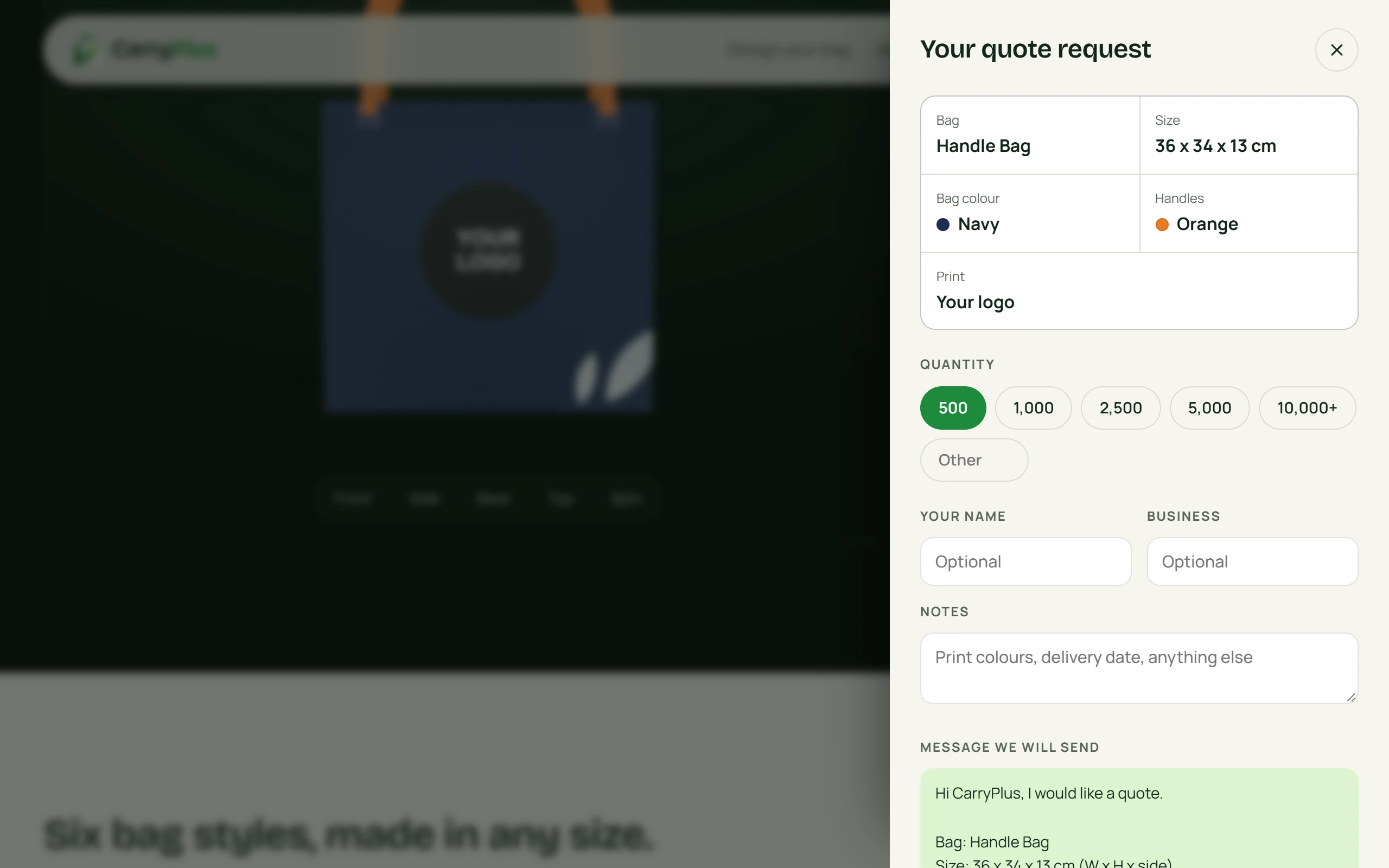
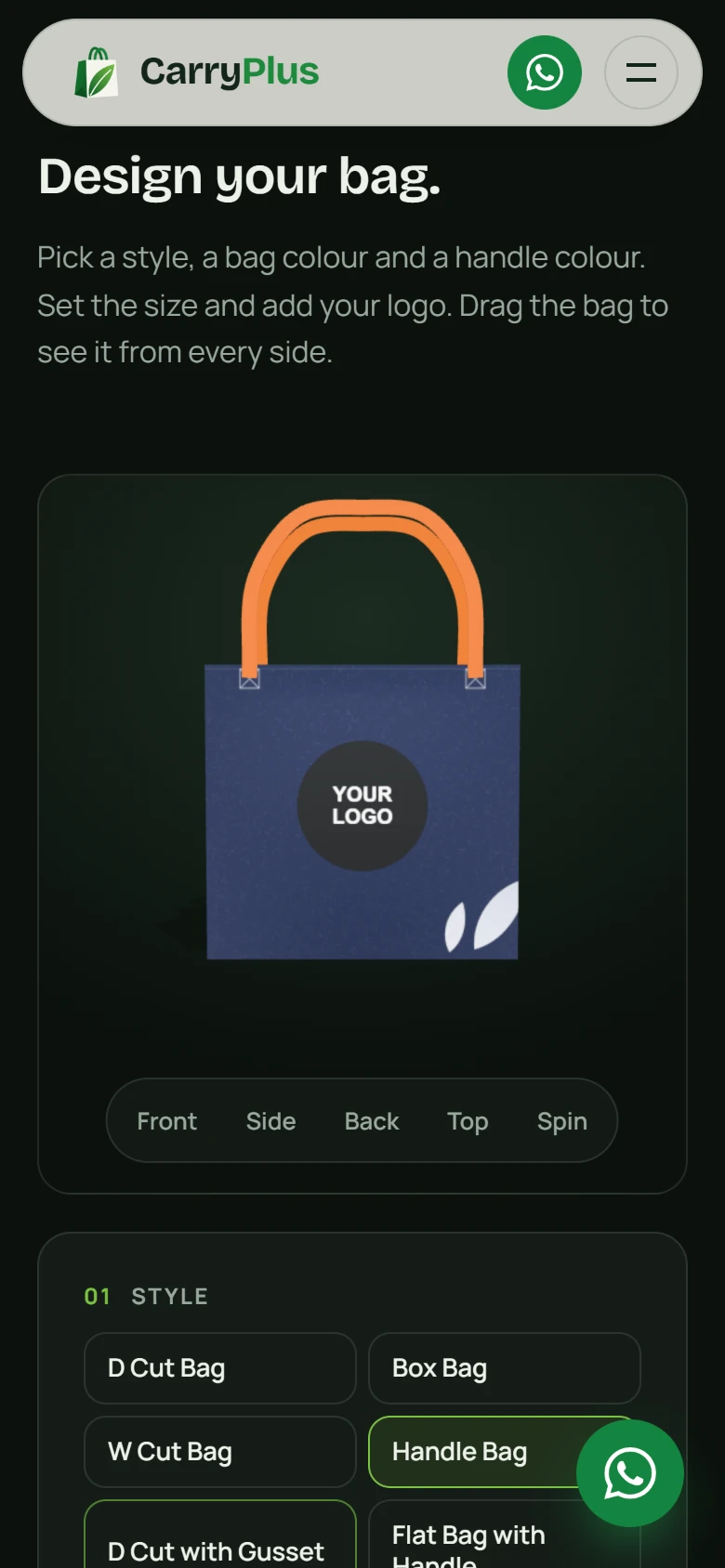
CarryPlus shows this in its bag designer. The customer chooses a bag style, colours, size and logo, then sees the design update before asking for a quote. The text quote uses a prefilled wa.me link. On compatible phones, the site also prepares a PNG bag picture and hands it to the phone share sheet, where the customer can select the CarryPlus chat. On a desktop, the same picture is saved so the customer can attach it themselves.
The image handoff uses a phone feature that can share a file after a tap. The message link cannot carry the image with it. Explaining the two steps means staff receive the exact bag picture instead of an uncertain written description.
Give staff a message they can act on
The website should produce a message that can be read in a few seconds. Lead with the product or service. Follow with the options, quantity, customer name and the one contact detail your team needs to reply. Keep optional notes last. When staff have to ask the same three questions after every chat starts, improve the form rather than writing a longer reply template.
Use the first week of real enquiries to find the missing question. Perhaps customers keep leaving out their preferred size, or staff need to know whether a price is for one item or a larger group. Add only the field that solves a repeated problem. A focused order form is easier to finish and easier to maintain.
Store no more customer information than the request needs. If a name and a reply number are enough to start the conversation, do not collect a full account profile. This keeps the website form clear and gives the customer fewer details to correct.
Test the full handoff on a real phone
Test the form on a phone with small text and a slower connection. Check that number controls, text fields and the button are easy to use with one thumb. Submit a safe test request. Confirm that the draft reaches the intended business chat, the line breaks remain readable and no private test details are left in the message history.
Also test the unusual cases. Try a long note, a customer name with punctuation, a quantity at the lowest and highest allowed value, and a phone without a compatible file share option. The page should explain what happened and still offer a way to save or send the needed picture. At least once, ask someone outside the build team to complete a safe test request from the beginning. Watch where they pause, what they expect after the button and whether the final message still makes sense without anyone explaining it to them. Keep a short record of every point that causes doubt. Fix the page wording or field order before the form is used for real customer requests. Do this before opening to customers.
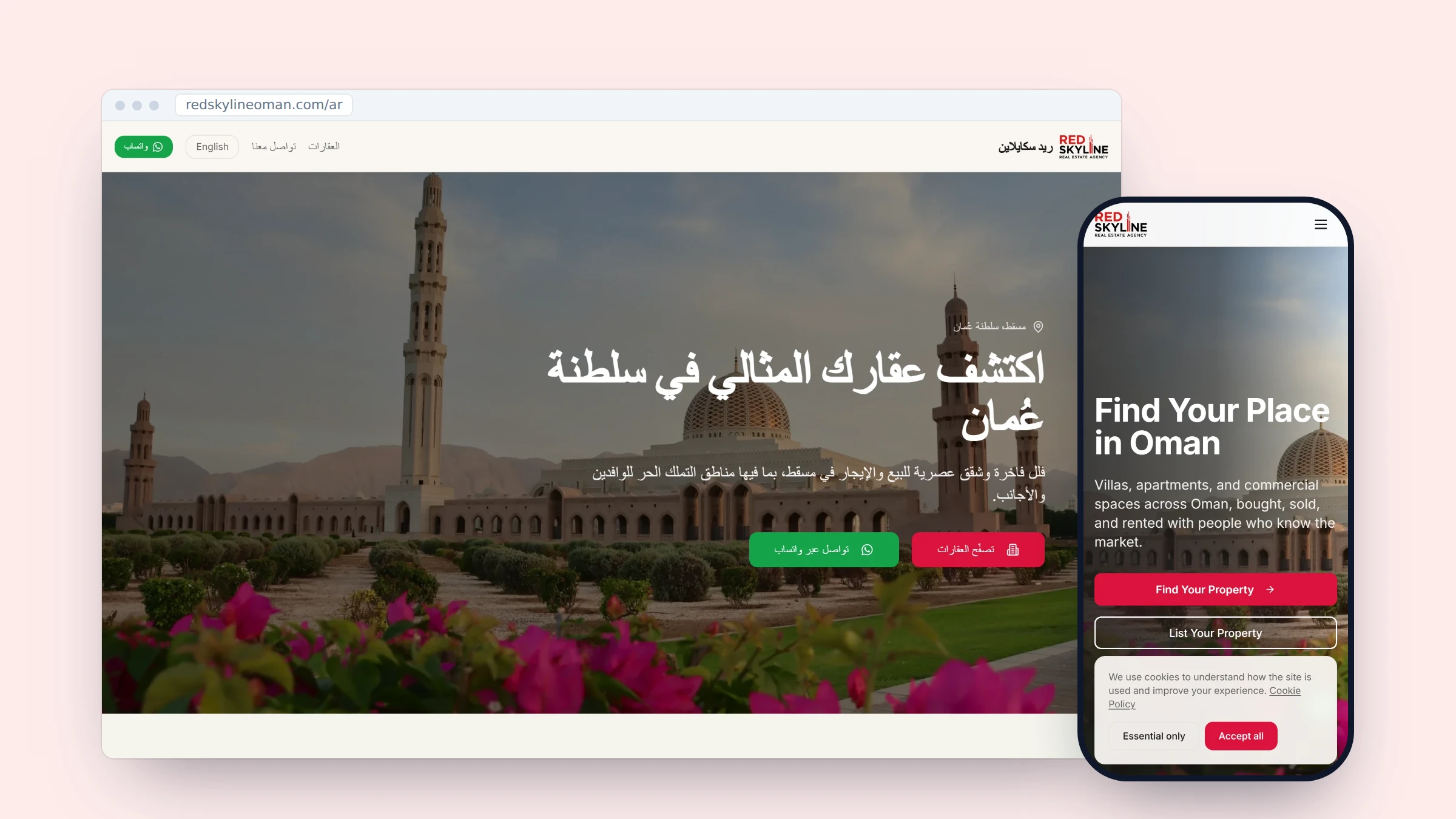
For a product where the order can be built before the chat opens, see Camp Gas. For a custom visual quote flow, see CarryPlus. If your website needs a practical order handoff, get in touch.
Common questions
- What is a WhatsApp order form for a website?
- It is a website form that collects order details and opens WhatsApp with a prepared message for the customer to review and send.
- Can a website send a WhatsApp order automatically?
- A click to chat link opens a message draft. The customer chooses whether to send it, which keeps the handoff clear and gives them a chance to correct it.
- Can a wa.me link attach a product image?
- No. A text link can prepare the message but cannot attach a file by itself. A phone share sheet or a saved download can provide a separate picture step.
- What should a WhatsApp order message include?
- Include the item or service, selected options, quantity, customer name and the details your team needs to reply. Put optional notes last.
The work behind this post
Written by Ammar Mahmood, Founder of Zeliks. We build websites, apps, AI assistants and automation, and the client owns the code. About Zeliks